This short guide covers transcribing and publishing interviews using tell.edgeryders.eu
Before you start
- Access: your Edgeryders account needs Trust Level 4 to sign in to Tell. Ask an Edgeryders administrator to check your level if you cannot access the app.
- Audio: prepare an MP3 file. Convert other formats (wav, m4a, etc) with an online or desktop audio conversion app before uploading.
- Session details: have a clear sesssion name, the correct forum category, and the agreed participant names or pseudonyms ready.
- Use a laptop or desktop for the full workspace
1. Sign in
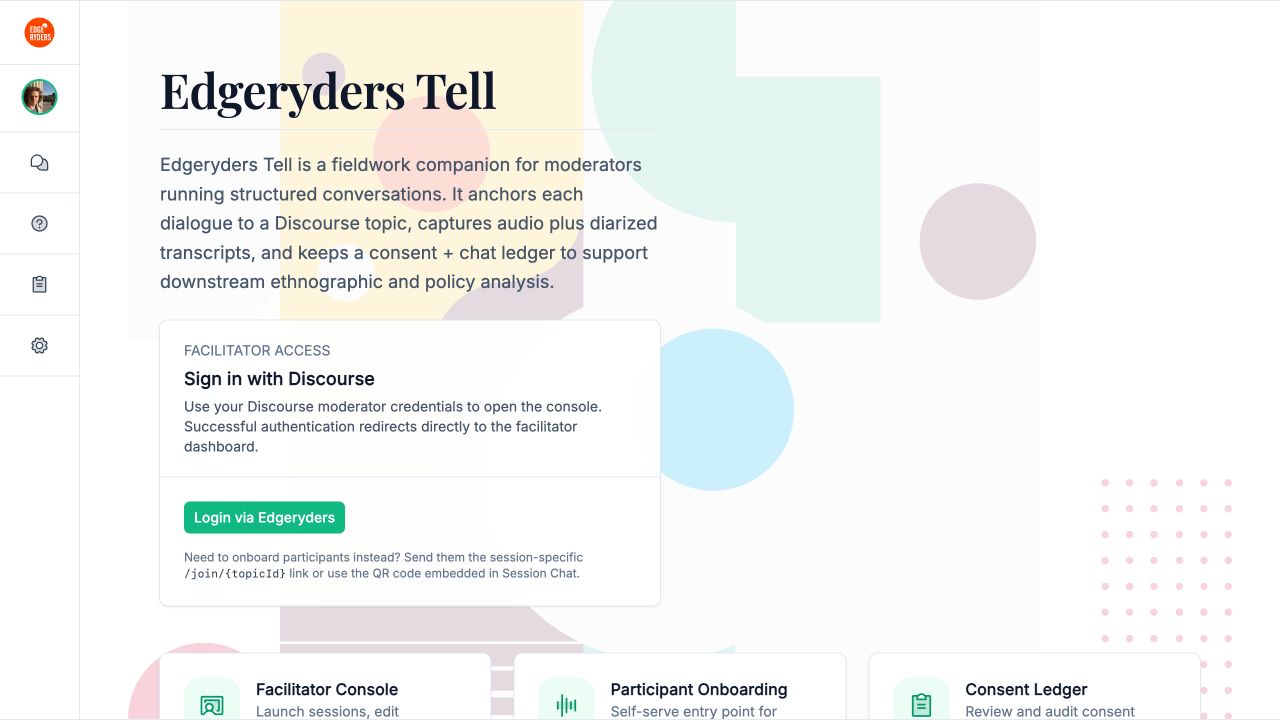
Go to tell.edgeryders.eu and choose Login via Edgeryders. Sign in with your Edgeryders account and approve the connection to Edgeryders Tell. You should return to the Sessions page.
2. Create a session
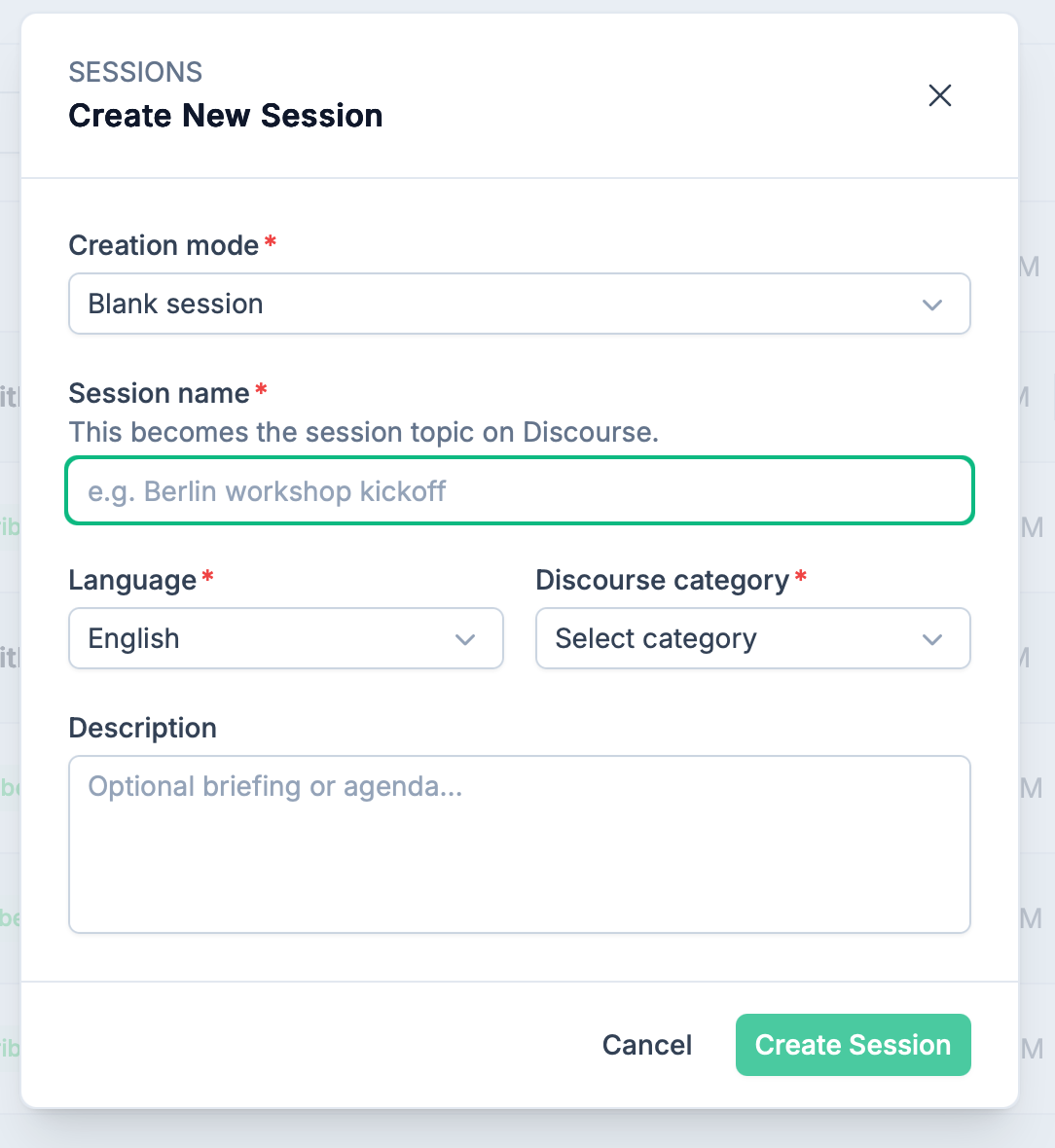
From Sessions, choose New Session and Creation mode set to Blank session. Enter a session name, choose the language and your project’s forum category, then select Create Session once. Wait for it to finish and open the new session.
3. Upload and transcribe
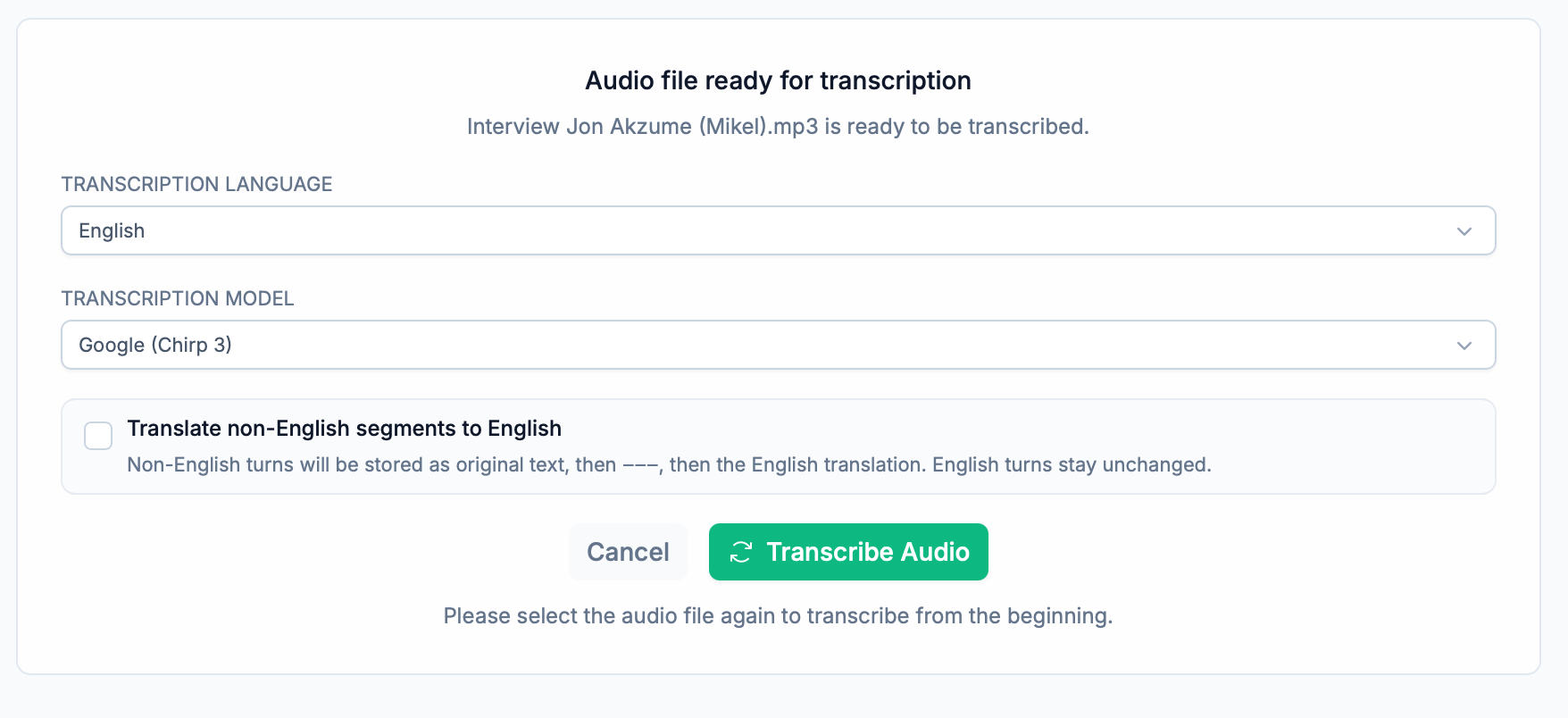
In the session, select Select an audio file and choose your MP3. Choose the recording language and transcription model. Use Mixed (auto-detect) if people speak more than one language.
You can optionally request an English translation during transcription. You can also translate later.
Select Transcribe Audio once and wait for the transcript to appear. Keep the browser open, your computer awake, and your connection active while it works.
4. Add people and assign speakers
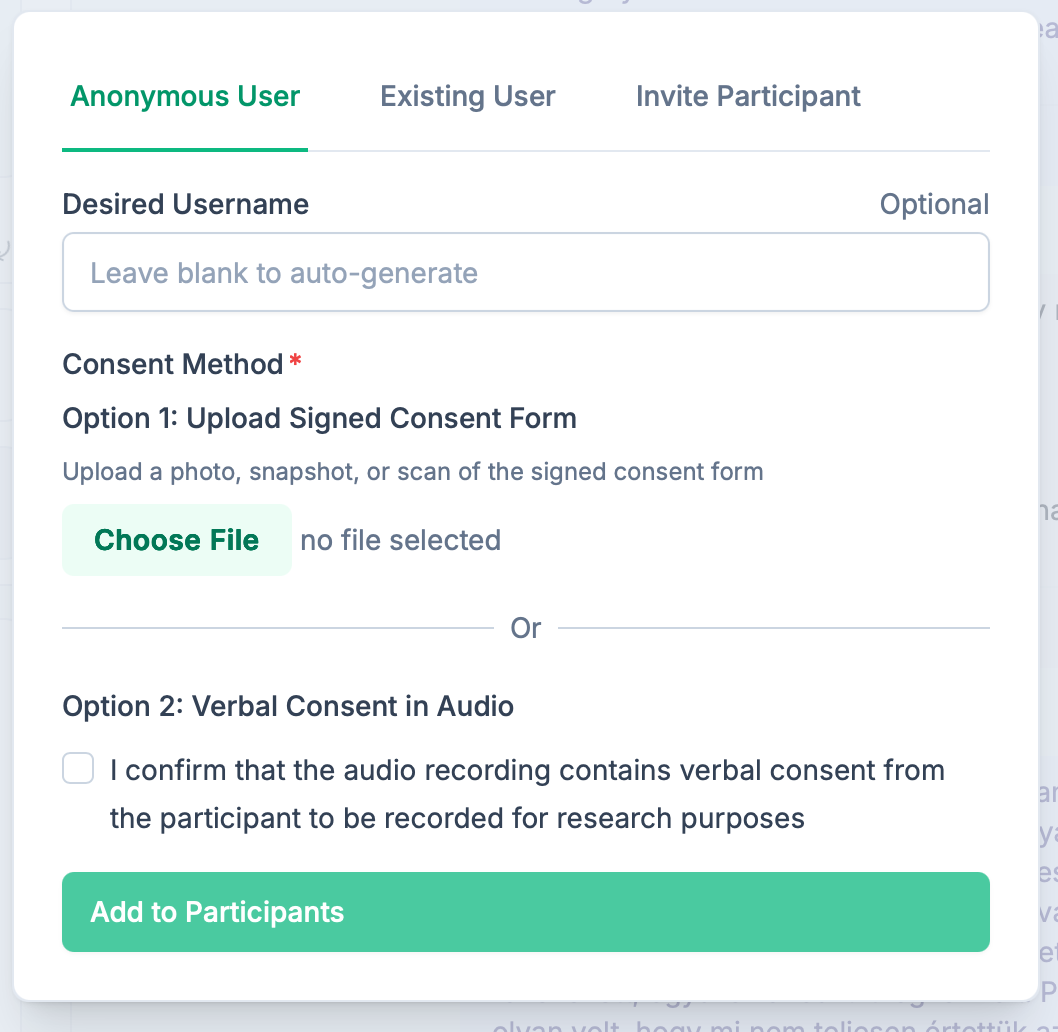
In Participants, use + to find each person’s existing Edgeryders account or generate a new Anonymous User account.
Listen to identify each voice, then choose the matching speaker label on that person’s participant card.
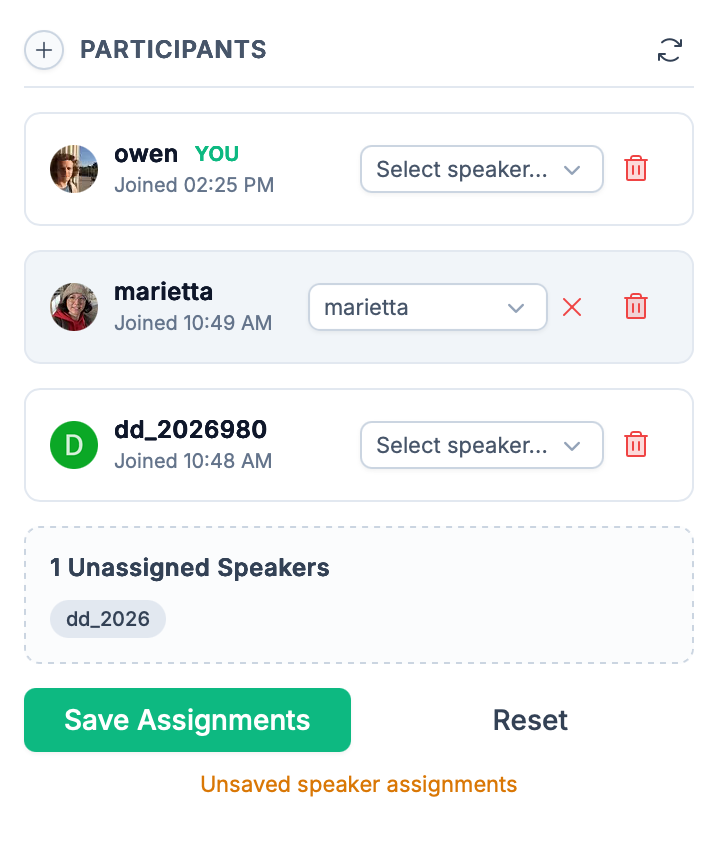
Important! Remember to click Save Assignments otherwise speaker assignments will not be saved. Before publishing, every speaker must be assigned to an account.
4. Check and correct the transcript
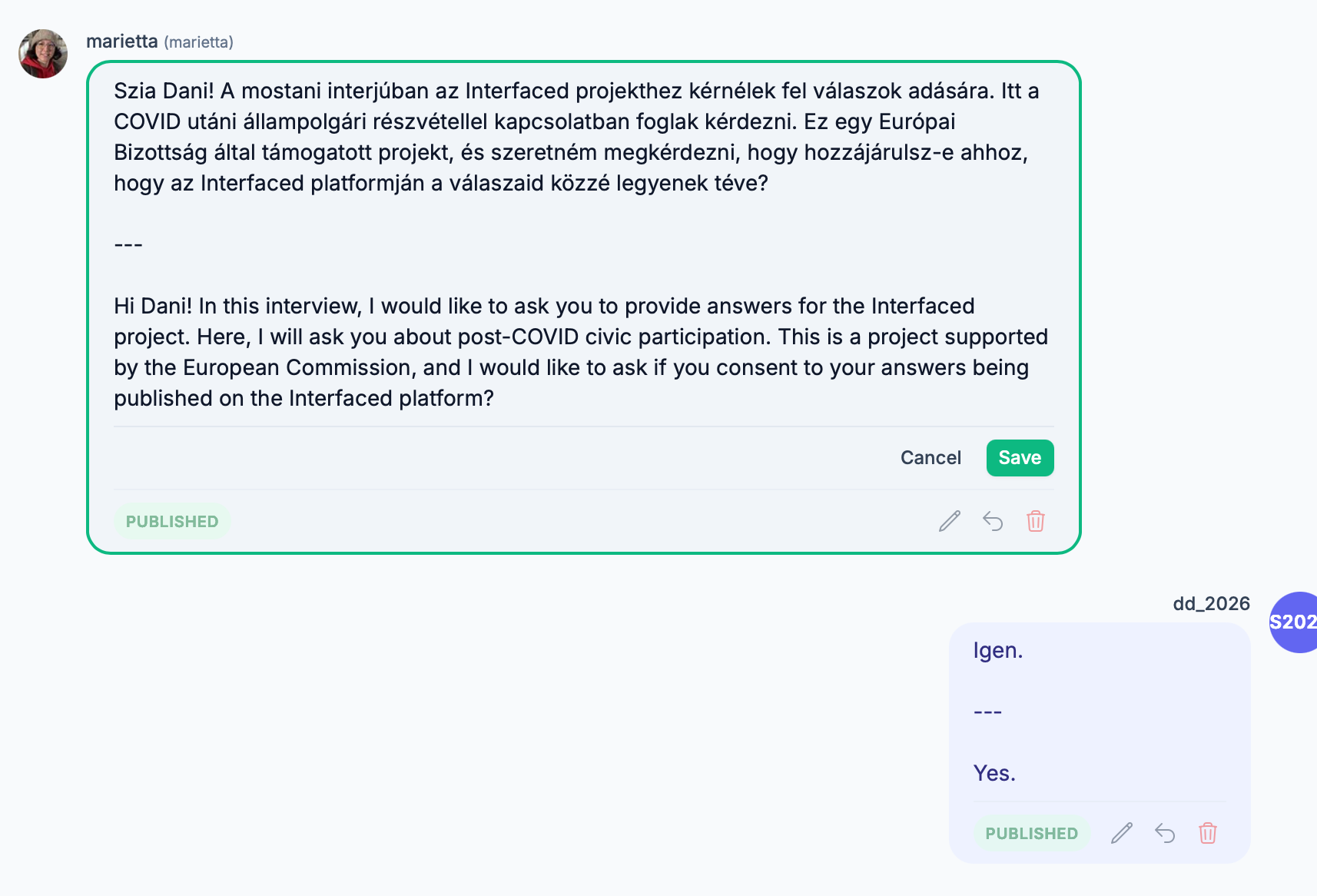
Once uploaded you can listen to the recording and check the transcript from beginning to end. Correct the words and speaker labels before publishing.
- Edit words: select the pencil on a segment, make the correction, then choose Save.
- Change the speaker: click the round speaker avatar on a segment and choose the correct speaker label.
- Add a missing turn or reply: click the reply arrow, select a speaker, enter the text, then choose Save Reply. This adds a transcript segment; it does not publish it.
- Delete a segment: click on the red trash icon to delete a segment.
5. Translate and publish
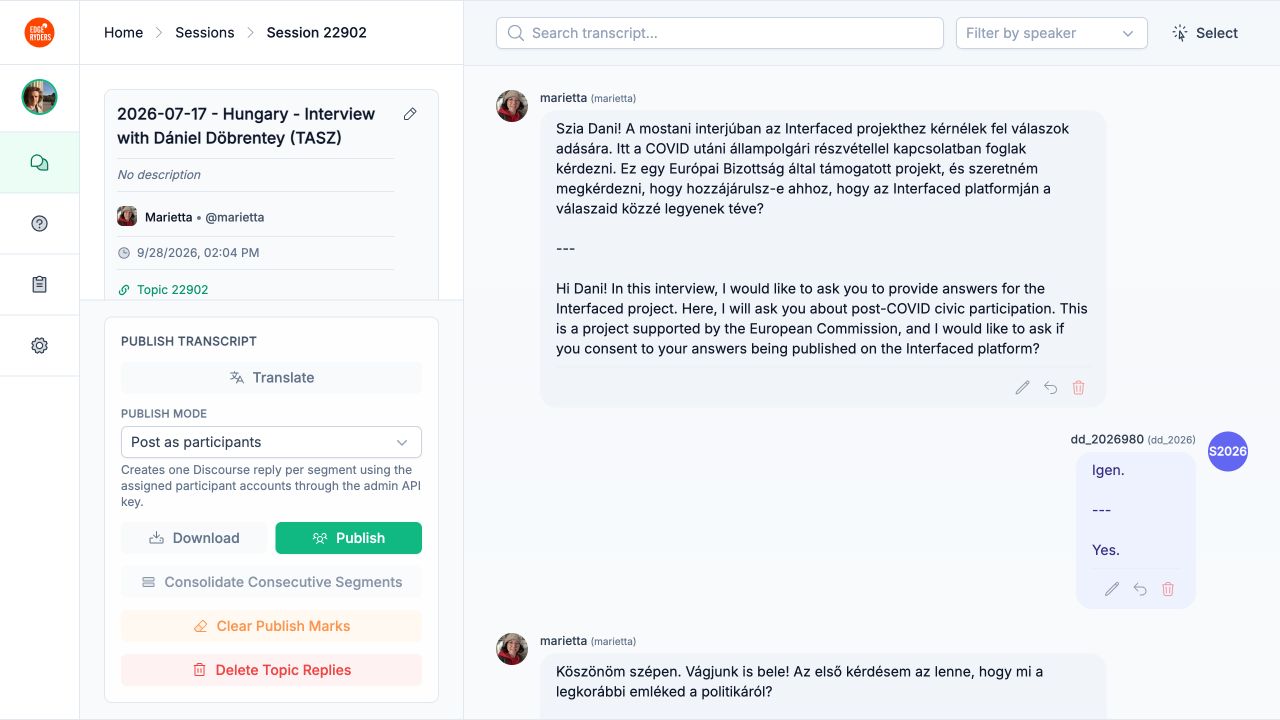
To translate after transcription, choose Translate for the whole transcript, or select turns and choose Translate Selected. Translation keeps the original text and adds the English text below a --- line. Check the translation before publishing.
Choose a publishing mode:
- Post as participants: each segment is posted under its assigned participant account. Every speaker must be assigned.
- Single post with quotes: Publishes the selected transcript turns together in one forum reply.
Click Publish. Read the confirmation and proceed. Keep the session open while Tell translates or publishes in batches. API rate limits may make the process slow so wait for the final success message, then open the session’s Edgeryders topic and check the published transcript.
New participant account limit: a newly created participant account may hit a posting limit before all its transcript segments are published. Ask an Edgeryders administrator to set that participant’s Trust Level to 3: regular, then retry any turns that remain unpublished.
5. What to do if something goes wrong?
A) Only part of the transcript was published
-
In the sessions page, duplicate the session to create a new version with the same transcript. This will also create a new Edgeryders topic to post it to.
-
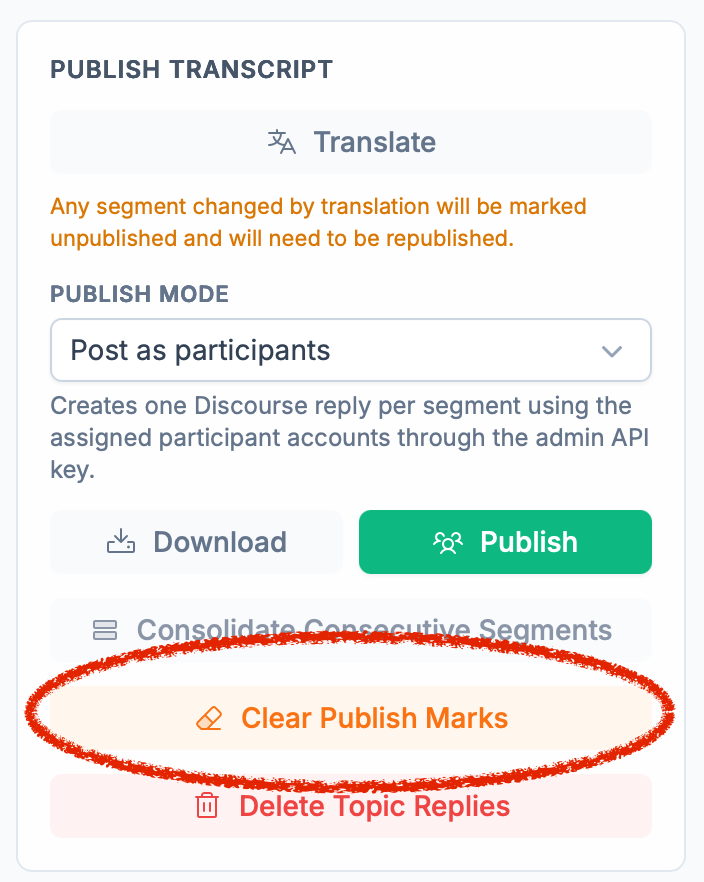
Important: If any segments in the old version were previously published, they will be skipped. To reset their published status, click Clear Publish Marks. This will reset everything so all segments will be published from the start.

B) Only part of the transcript was published
-
Create a new session, upload the MP3 again and start transcription again.
-
Check the new transcript before translating or publishing it.